Run E2E Tests on Vercel Preview Deployments
Every pull request gets a Vercel preview URL. Here is how to run e2e tests against it automatically, including how Vercel Deployment Protection and the protection bypass for automation work.


Preview deployments are one of Vercel's best features. Every pull request gets a real URL, with the actual branch code running in an environment much closer to production than a local dev server.
That makes previews the right place to run end-to-end tests, because they catch issues before the merge.
The problem is orchestration. You need to wait for the preview, find the correct URL, avoid the wrong Vercel project, handle deployment protection, run the tests, and report results back to the pull request.
TesterArmy handles that flow for Vercel previews. Let's walk through how it works.
What we are setting up
The goal is simple: every pull request should get tested against its own Vercel preview deployment before merge.
The flow looks like this:
- A pull request is opened or updated.
- Vercel builds a preview deployment.
- GitHub emits a deployment status event when the preview is ready.
- TesterArmy verifies that the deployment belongs to the selected Vercel project.
- TesterArmy runs your configured tests against the preview URL.
- The result is posted back to the pull request.
There is no custom GitHub Actions workflow to maintain and no manual URL copying. Instead, the preview URL is automatically set as the test target.
Why previews are better than testing production
Production monitoring is useful, but it catches issues after code is already live. PR-level testing catches the same class of issues earlier.
For web apps, preview deployments are especially useful because they test the whole stack:
- Routing and middleware
- Auth redirects
- Feature flags and environment-specific behavior
- Forms and dashboard flows
- Responsive UI in a real browser
Unit tests and component tests are still useful, but they do not answer the most important release question: does the product actually work when this branch is deployed?
Preview E2E tests answer that before the PR lands.
Connect to GitHub first
For Vercel PR testing, GitHub is still the event source.
TesterArmy listens for GitHub deployment status events and uses them to find the ready-to-deploy preview. The first step is to connect to the GitHub repository.
In TesterArmy:
- Open your project.
- Go to Integrations.
- Install the TesterArmy GitHub App.
- Select the repository that matches your project.
After GitHub is connected, TesterArmy can resolve pull requests, view commit SHAs, view changed files, and view PR comments.
This matters because test results should appear alongside code review. In other words, reviewers should not need to leave GitHub just to know whether the preview passed QA.
Connect Vercel and choose the project
Next, connect Vercel from Integrations -> Vercel.
This opens the TesterArmy integration page on Vercel. Install it for the personal account or the Vercel team that owns the app you want to test.
After the integration is installed, go back to TesterArmy, refresh the project list, and select the Vercel project associated with this TesterArmy project.
That project selection is important.
One GitHub repository can be connected to multiple Vercel projects. You might have a marketing site, an app, a docs site, or several experiments all deploying from the same repository. TesterArmy needs a single explicit Vercel project so it can ignore unrelated deployments and run tests against the correct preview URL.
Only deployments from the selected Vercel project trigger tests.
You can also choose a GitHub target branch if you only want automatic runs for PRs aimed at a specific base branch, like main.
Vercel Deployment Protection: getting automated tests past it
By default, Vercel preview deployments are often protected: Vercel Authentication or a password gate sits in front of the URL, so your teammates can see the preview but an automated browser hits a login wall. Any e2e setup that tests previews has to deal with this, and it is the single most common reason preview tests fail on the first attempt.
Vercel's supported answer is called Protection Bypass for Automation. In the project settings, Vercel generates a secret; automated tools present that secret with each request (via the x-vercel-protection-bypass header, optionally exchanging it for a cookie with x-vercel-set-bypass-cookie so subsequent page loads stay authorized), and protected previews open normally for the test run while staying locked for everyone else. The secret is scoped to the project and can be rotated at any time.
If you run your own Playwright or Cypress suite, you wire that header in yourself: fetch the secret from your CI secrets store, attach it to the browser context, and handle the cookie exchange so client-side navigations stay inside the bypass.
If the run goes through TesterArmy, this is already handled. The Vercel integration resolves the correct preview for the pull request and presents the bypass automatically for protected deployments, so a protected preview behaves exactly like an open one. The setup, including where to find the secret in Vercel and where to paste it in TesterArmy, is in our Vercel preview docs.
Two practical warnings from real setups:
- Treat the bypass secret like a password. It opens every protected preview in the project. Keep it in your secrets manager, never in the repository, and rotate it if it ever appears in a log.
- The bypass authorizes the deployment gate, nothing else. If your app has its own login, your tests still need real authentication behind the gate. That part is covered in our guide to testing authentication in e2e. And if your staging sits behind HTTP basic auth rather than Vercel's gate, that gate has its own guide.
Choose what runs on each PR
Once GitHub and Vercel are connected, open the PR Testing tab.
TesterArmy can run two kinds of checks on each preview deployment.
| Check | Best for |
|---|---|
| Test group runs | Repeatable regression coverage for flows you already know matter |
| Exploration agent | Targeted QA based on the PR title, description, changed files, and project context |
Most teams should start with a test group.
Create a small group with the flows that must never break:
- Sign in.
- Open the main dashboard.
- Create or edit a core resource.
- Complete the highest-risk user path in your product.
Then enable Test groups for PRs and select that group in the PR Testing tab.
The exploration agent is useful when you want broader coverage without writing every test upfront. It reads the PR context, creates a test plan, and runs checks against the same preview URL. You can enable it alongside a test group, so the stable regression suite and exploratory QA run together.
Handle protected Vercel previews
Many teams protect preview deployments so random people cannot open internal branches. That is a good default, but it also means automated browsers need a safe way through.
Vercel supports Protection Bypass for Automation tokens for this.
In Vercel:
- Open the selected Vercel project.
- Go to Project Settings -> Deployment Protection.
- Create a Protection Bypass for Automation token.
Then paste that token into TesterArmy under Project Settings -> Integrations -> Vercel.
TesterArmy applies the bypass automatically when the browser navigates to the preview deployment. As a result, the token is scoped to the deployment host being tested, so it is not added to third-party URLs, OAuth providers, or unrelated Vercel projects.
That means your saved test can still say "go to the preview URL". You do not need to bake bypass query parameters into the test steps or expose the token in prompts, comments, or reports.
What reviewers see
When a preview is ready, TesterArmy queues the configured PR checks.
The pull request gets one comment with the result. On later pushes, that comment is updated instead of creating a new thread every time, so the review stays in one place.
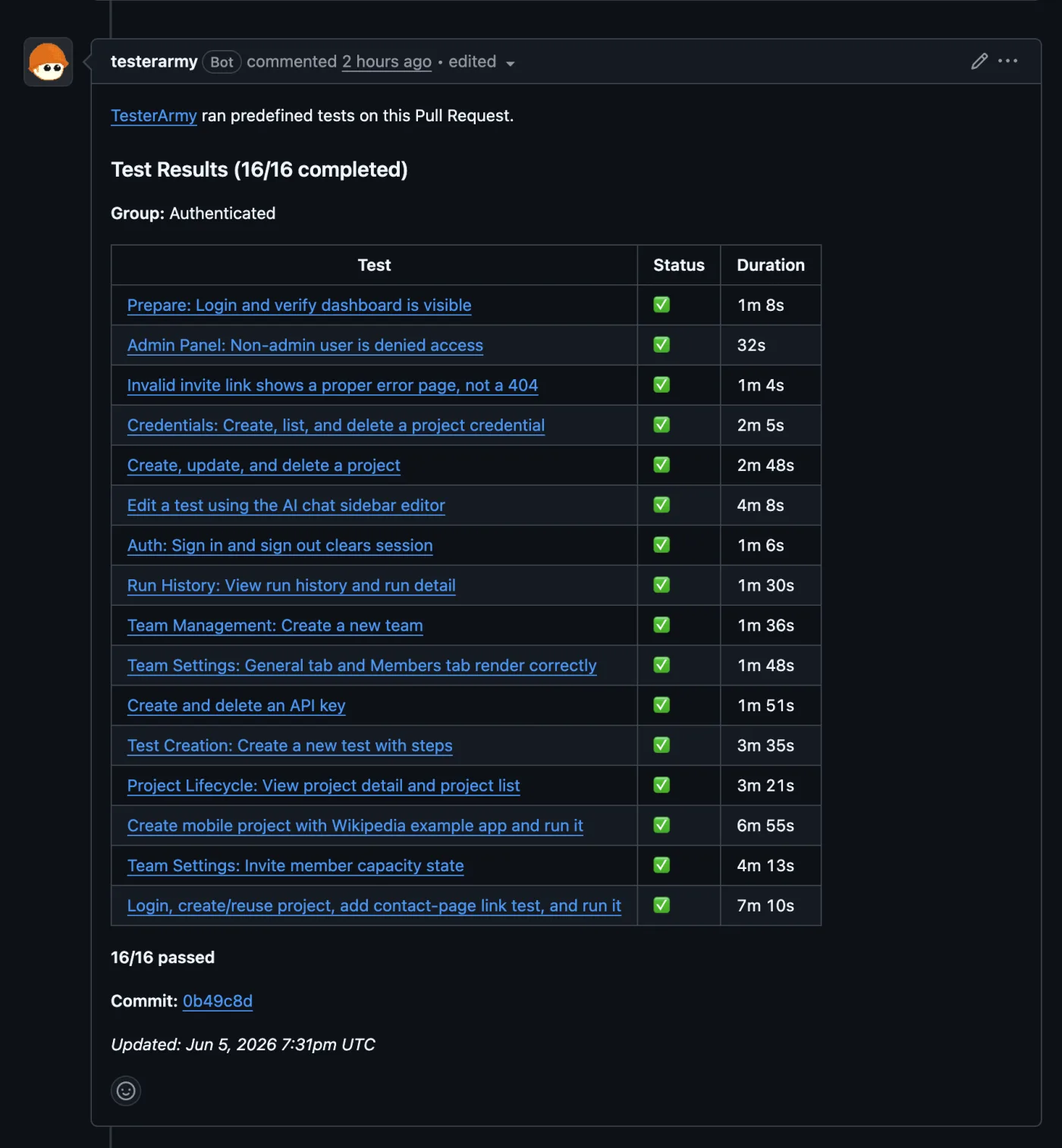
Example TesterArmy PR comment in GitHub.
For failures, reviewers get the useful parts immediately:
- Which test failed
- What the agent saw
- Screenshots and videos
- Run details in TesterArmy
- Reproduction context for the failing flow
That changes the review conversation. Instead of "can someone click through this branch?", the PR already has evidence from the preview deployment.
Common setup mistakes
The first common mistake is connecting GitHub but not selecting a Vercel project. GitHub tells TesterArmy that a deployment exists, but TesterArmy still needs to verify which Vercel project is allowed to trigger tests.
The second mistake is selecting the wrong Vercel project. If one repository deploys multiple apps, make sure the selected Vercel project matches the product your TesterArmy tests expect.
The third mistake is forgetting the bypass token for protected previews. If the test opens a Vercel authentication page instead of your app, add the protection bypass token in the Vercel integration settings.
The fourth mistake is starting with too many tests. Begin with a small group of critical flows. Once that is stable, add more coverage.
That's a wrap
Vercel already provides a production-like preview for every pull request. TesterArmy connects that preview to your end-to-end tests.
The setup is: connect to GitHub, connect to Vercel, select the Vercel project, enable PR Testing, and add a bypass token if previews are protected.
After that, every ready Vercel preview can run your saved tests and report results back to the pull request.
If you want the exact setup steps, start with the Vercel integration docs and Pull Request Testing docs.
Frequently asked questions
How do automated tests access protected Vercel previews? Through Vercel's Protection Bypass for Automation: a project-scoped secret presented as a request header, which tells Vercel to let the automated session through while the preview stays protected for everyone else.
Do preview tests replace testing in production? They complement it. Previews catch regressions before merge; production monitoring catches what only shows up live, like third-party changes. How to do the live side safely is covered in testing in production.